
Save Facebook Ads to Google Drive: A Clean Setup
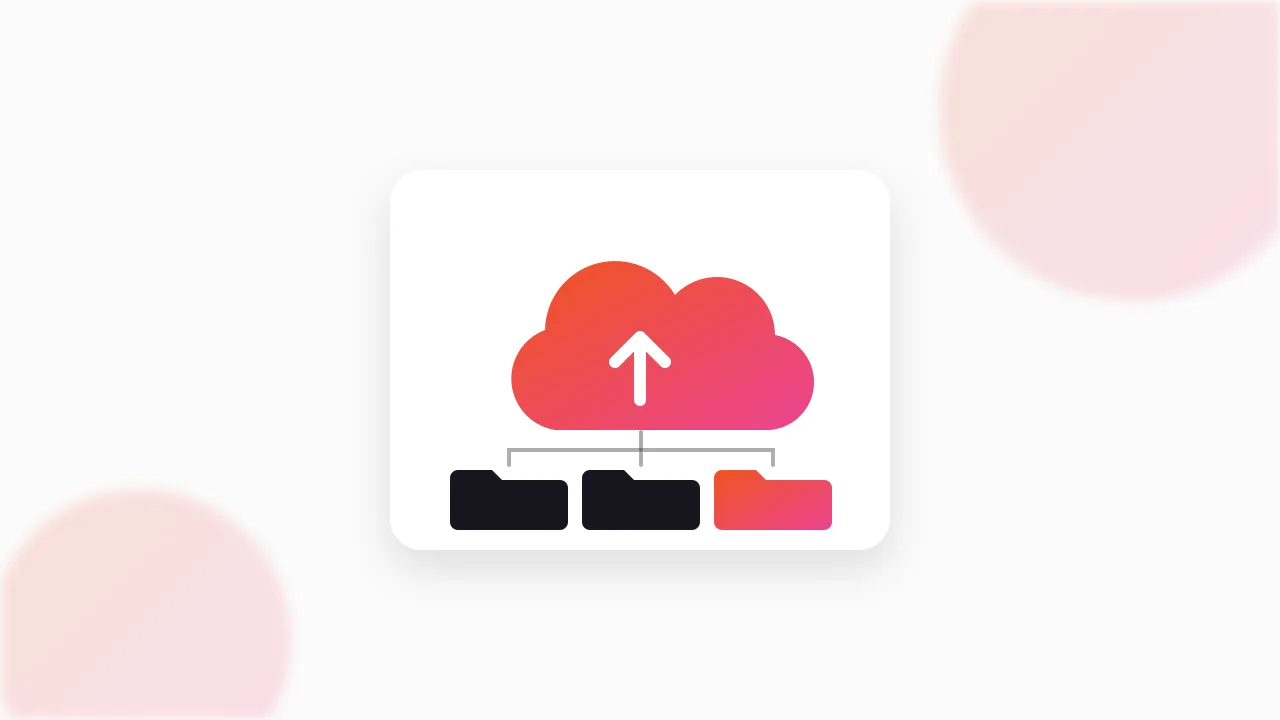
You can't save Facebook ads to Google Drive directly, because the Meta Ad Library has no download button and no "send to Drive" option. The way to do it is to download the ad files to your computer first, then upload them to Drive or, better, save them into a folder that Drive for desktop syncs automatically.
I keep every competitor ad I care about in Google Drive. Clients already live there, teammates can open it on any device, and video previews play in the browser. Here is the setup I use, including the folder structure and naming that stop it from turning into a junk drawer after the first month.
Why save Facebook ads to Google Drive at all?
The Ad Library is a window, not a storage locker. It shows every active ad from any advertiser, but ads vanish from public view when the advertiser stops running them. If you found a great hook last week and didn't save it, it may be gone today. Our explainer on why ads disappear from the Ad Library covers the details.
So the first job is getting a real copy. The second job is putting that copy somewhere your team can reach. Drive is a sensible default for most agencies and in-house teams because:
- Everyone already has access through their Google account.
- Videos and images preview in the browser without downloading.
- Sharing with a client is one link with view-only permissions.
- CSV files open directly as Google Sheets.
If your team runs on Notion instead, our guide to building a swipe file in Notion is the better fit. A lot of teams end up using both: files in Drive, notes and tags in Notion.
Can the Ad Library send ads to Drive directly?
No. There is no export, share-to-Drive or save option inside facebook.com/ads/library. Anything that saves to Drive needs a downloadable file to send, and the Library doesn't expose one for its ads.
That means the workflow always has two steps: download, then store. The good news is that once you set up a synced folder, step two happens on its own.
Step 1: How do you download the ads first?
You have a few options, and they differ mainly in quality and speed.
Screen recording works on any ad but gives you a re-encoded, screen-quality copy. DevTools can get you the original file one ad at a time if you are comfortable digging through the Network tab. A download extension is the fastest and keeps the original quality.
Here is how I do it. I use our free extension, the Meta Ad Library Downloader, which adds a Download button to every ad in the Library. One click saves the video in original HD without a watermark, the image, or every card of a carousel. For a whole competitor, its "Find all ads" mode scrolls the search, collects every running ad and packs everything into one ZIP, with files named by advertiser and date. It is free, needs no account, and runs in your browser on your own connection.
For the full set of download methods compared, see the complete guide to downloading Ad Library videos. If you are pulling a whole brand at once, the bulk download guide is the one to read.
Step 2: How do you get the files into Google Drive?
There are two ways. Pick based on how often you save ads.
Manual upload. Open drive.google.com, go to the folder you want, and drag the files in, or use New > File upload or New > Folder upload. This is fine if you save a handful of ads a month.
Drive for desktop sync. Google's Drive for desktop app puts your Drive on your computer as a regular folder. Anything you save there is uploaded in the background. I set my browser's download location, or at least my "save as" habit, to a folder inside Drive, so ads are in the cloud before I've even renamed them.
If you downloaded a ZIP, unzip it on your computer before moving the contents into Drive. Drive can store a ZIP file, but your teammates will want to click a video and watch it, not download an archive first.
What folder structure works for ads in Drive?
The structure that has survived longest for me is three levels deep:
Competitor Ads/
  BrandName/
    2026-10/
      video/
      image/
      carousel/
Brand first, because most questions start with "what is Brand X running?". Month second, because ads change and you want to see what a brand ran in a given period. Format last, because video and static ads get reviewed by different people and in different ways.
Use the YYYY-MM format for month folders so they sort in date order automatically. "October 2026" sorts alphabetically, which puts April before January.
For file names, put the advertiser and date first. Something like brandname_2026-10-11_video_hook-before-after.mp4. The description at the end is optional but useful when you search Drive later. Our guide to organizing a swipe file goes further into tagging and naming systems.
| Level | Example | Why it's there |
|---|---|---|
| Brand | Competitor Ads/BrandName/ | Most lookups start with one competitor |
| Month | 2026-10/ | Shows what ran when; sorts by date |
| Format | video/, image/, carousel/ | Different reviewers, different review styles |
| File name | brandname_2026-10-11_video_hook.mp4 | Searchable in Drive; date survives if the file moves |
| Index | BrandName ads index (Google Sheet) | One row per ad with link, hook, CTA, notes |
How do you keep an index in Google Sheets?
Folders get you to a brand and a month. An index gets you to a specific ad by its hook, offer or angle.
If your downloads came with a CSV of the ads, upload it to Drive, right-click it and choose Open with > Google Sheets. That creates a Sheet version you can sort, filter and add columns to.
I add a few columns of my own:
- Drive link to the file, so anyone can jump from the row to the video.
- Started running on, copied from the Ad Library. Longer-running ads are usually the winners, because advertisers keep paying only for ads that work.
- Hook in a few words.
- Angle or theme, for filtering.
- Notes on why it is worth studying.
Freeze the header row, turn on a filter, and the Sheet becomes the real front door to the swipe file. Teammates rarely browse folders once a good index exists.
Will the HTML swipe board work inside Google Drive?
This one trips people up. Our extension's export ZIP includes an index.html swipe board you can search by hook, CTA or advertiser, play ads from and copy ad text. It is built to open in a browser from your computer.
As a general rule, Google Drive doesn't run uploaded HTML files as web pages. When you click one in Drive's web interface, you typically get a preview of the file or its code, not a working page. That's a Drive behaviour, not something specific to our file, and it applies to any HTML file you upload.
The CSV is the opposite case. It opens fine in Google Sheets, so for teammates who only ever work in the browser, the Sheet index is the version I point them to. The HTML board is the version I use on my own machine.
How do you share competitor ads with a team or client?
Drive's sharing is straightforward, but a few defaults are worth setting on purpose.
Share the folder, not individual files. Share the top Competitor Ads/BrandName/ folder, and everything inside inherits access. New ads you add later are visible automatically.
Use view-only for clients. Give clients the Viewer role. They can watch and browse but can't move, rename or delete anything. Keep Editor access for the people who actually maintain the swipe file.
Prefer named access over "anyone with the link". For client work, I add the client's email addresses rather than turning on link sharing. If a link gets forwarded, it doesn't open the whole folder to strangers.
Send the Sheet, not the folder, to busy people. A client or a creative director will open a Sheet with ten rows and a link per ad. They won't dig through five levels of folders.
Our post on sharing a swipe file with your team covers ownership and weekly review routines, which matter more than the tool once more than two people are adding ads.
What should you not do with ads stored in Drive?
Saving public ads for research is standard practice in this industry. Every major ad spy tool does it, and the Ad Library is public transparency data. Re-using someone else's creative in your own ads is a different matter.
Keep your Drive folder labelled as research. Use it to study hooks, offers and structure, then brief original work. Copy the angle, not the asset. This is general guidance, not legal advice.
FAQ
Can I save ads from the Meta Ad Library straight to Google Drive?
No. The Ad Library has no download or share-to-Drive option. Download the ad files to your computer first, then upload them to Drive or save them into a folder synced by Drive for desktop.
What is the best folder structure for Facebook ads in Google Drive?
A Brand > YYYY-MM > format structure works well for most teams. Name files with the advertiser and date first, and keep a Google Sheet index with a link, hook and notes for each ad.
Will the swipe board HTML file work inside Google Drive?
Generally not as a working page. Drive's web preview shows HTML files rather than running them, so download or sync the folder and open the HTML file locally in your browser. The CSV opens fine in Google Sheets.
How do I share saved competitor ads with a client?
Share the brand's folder or the index Sheet with the client's email address using the Viewer role. View-only access lets them watch and browse without being able to change or delete anything.
Do saved Facebook ads disappear from Google Drive when the advertiser stops running them?
No. Once you have downloaded a file and stored it in Drive, it stays there until you delete it. Only the Ad Library listing disappears when an advertiser stops the ad, which is why saving a real copy matters.
The Klipio extension adds a download button to every ad in the Meta Ad Library: one click per ad, or bulk-save a whole search as a ZIP with a searchable swipe file inside. Free, no sign-up.
Get the free Ad Library downloaderKlipio reads a competitor's live Meta ads, ranks them by how long they have been running — the honest signal that an ad is profitable — and turns the winning angle into on-brand creative for your own brand. 3-day free trial.
Start free — 3-day trial →